

NEURONUP REPORTS
Turn your results into professional reports in just a few minutes with NeuronUP
Bring together assessment and intervention data, customize the conclusions, and generate a professional document ready to share with patients, families, or other professionals.
What are NeuronUP reports?
NeuronUP reports let you turn the information gathered during assessment and intervention into an organized, customizable document.
You can include quantitative results, select the charts you want to show, add observations and clinical conclusions, and include recommended activities.
You can also rely on an AI-assisted interpretation as a starting point for writing and then adapt it according to your professional judgment.
This way, you spend less time gathering information and writing reports from scratch, and you can focus on interpreting the results and making decisions about the intervention.
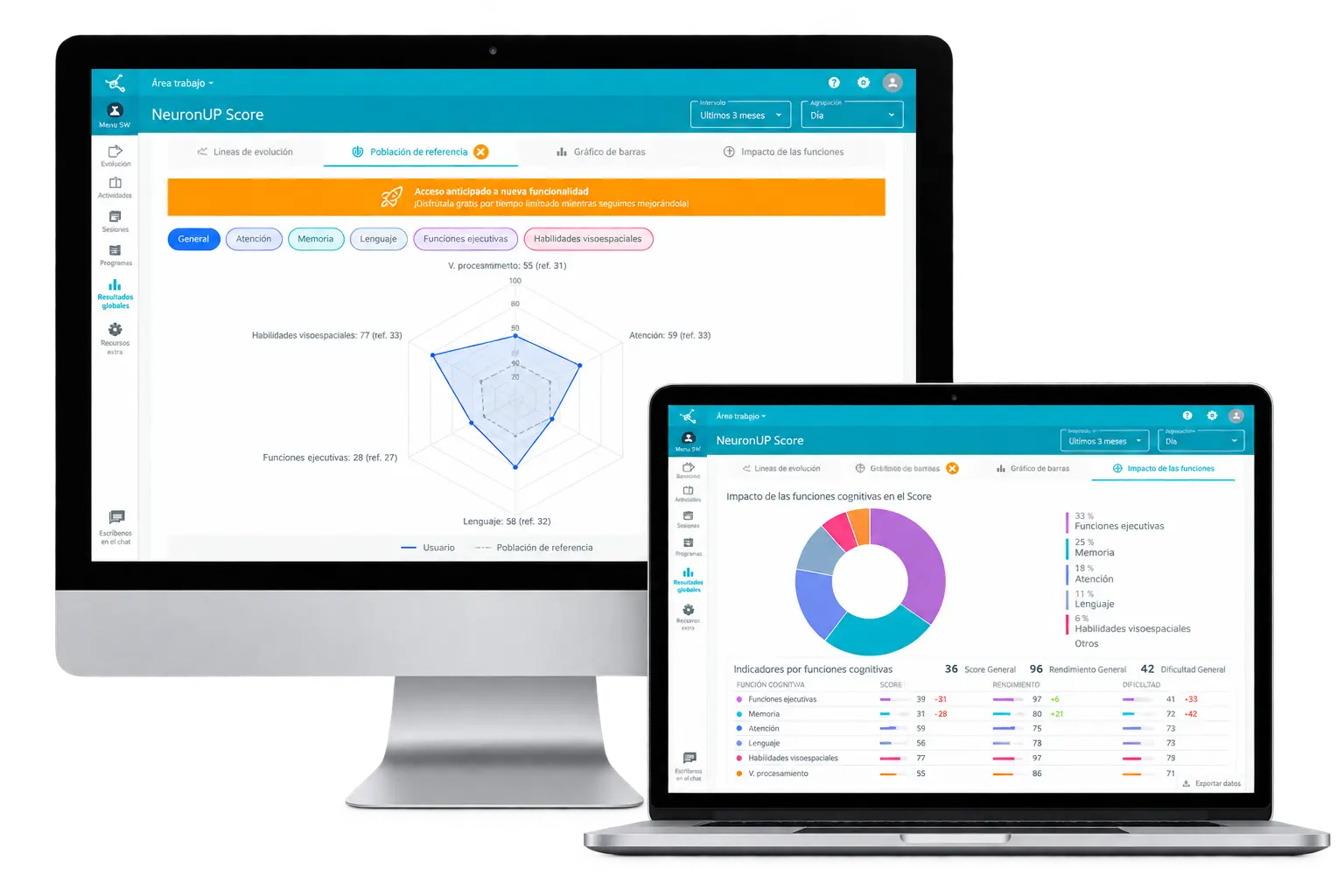
In the Digital results section, you can view different types of charts that will help you analyze each patient’s progress and performance:
Evolution
lines:
They show how the patient’s performance evolves over time. They can also include trend lines and make it easier to compare different cognitive functions.

Reference populations:
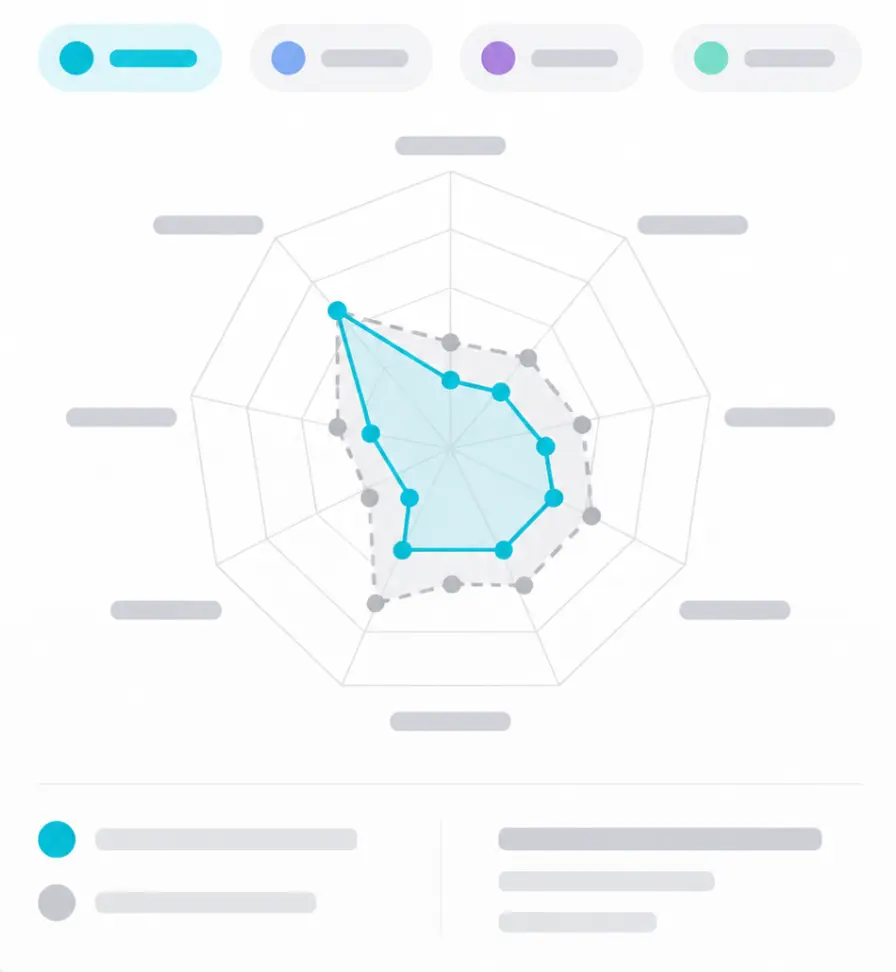
They let you compare the patient’s results with those of a reference group with a similar demographic and diagnostic profile. You can also filter the information by cognitive function for a more specific analysis.
Bar
chart:
Offers a clear, comparative view of performance (0-100) in the cognitive functions worked on. It lets you analyze results by day and visually identify the areas with higher or lower performance.

Impact of cognitive functions on the score:
Shows how much each cognitive function worked on contributes to the patient’s overall score, making it easier to identify the areas that weigh most in their total performance.
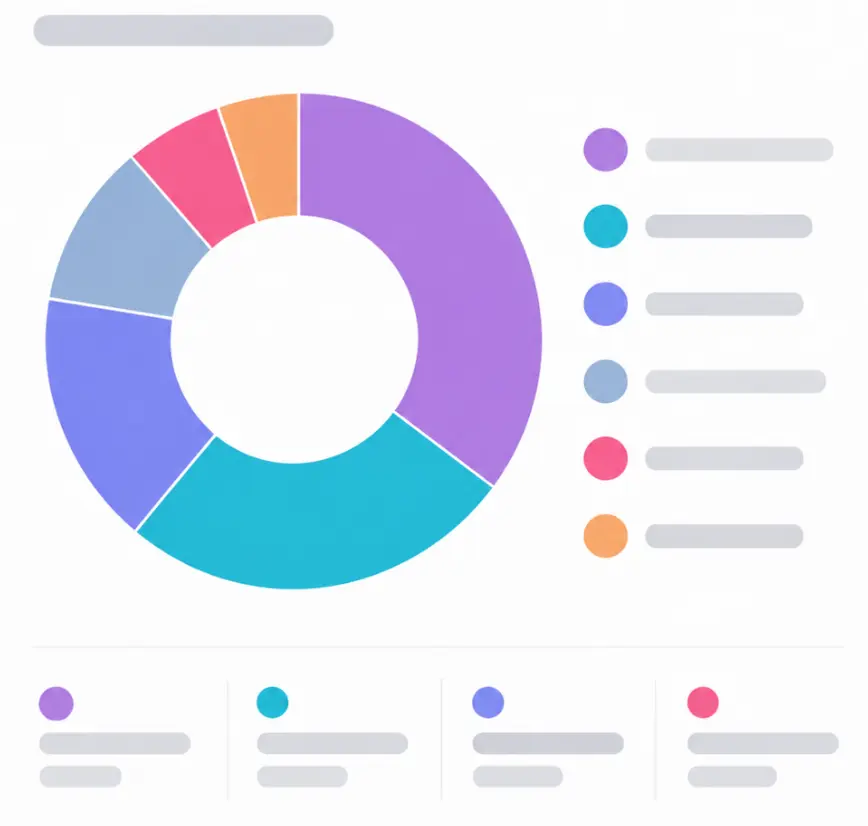
These charts provide complementary information to put the results in context, always subject to the professional’s interpretation.
Discover the advantages of creating a report in NeuronUP
In this video, you will learn how to select a patient, create a new report, and choose the assessment and intervention results you want to include.
What can you achieve with NeuronUP reports?
Create reports in just a few minutes
Preparing a report means gathering results, organizing information, selecting the relevant data, and writing the conclusions. NeuronUP brings together much of this information directly from the data recorded on the platform and structures it in a single document.
Combine assessment and intervention in a single document
The report can bring together quantitative data from the assessment and from the intervention carried out afterwards, providing an overall view of the patient’s performance and progress without manually gathering information from different sections.
Present results visually
Select the relevant charts and data for each report. The visual presentation makes it easier for patients, families, other professionals, multidisciplinary teams, centers, and institutions to understand the results, and you can decide what to include depending on who the report is for.
Use AI to help interpret the results
NeuronUP lets you add an AI-assisted interpretation as a starting point for writing certain sections. The professional can review, modify, expand, or delete the generated content. The final interpretation and clinical decisions always remain subject to the professional’s judgment.
Customize the content and add your clinical assessment
Adapt the report to the patient’s characteristics and to the purpose of the document. Select the most relevant results and charts and add your own observations, comments, and clinical conclusions to give a more complete picture of their progress.
Include recommended activities
Add recommended NeuronUP activities to guide the next steps. This way, the report does not just describe performance: it connects the results obtained with subsequent planning and helps establish future lines of work.
Spend more time
on clinical analysis
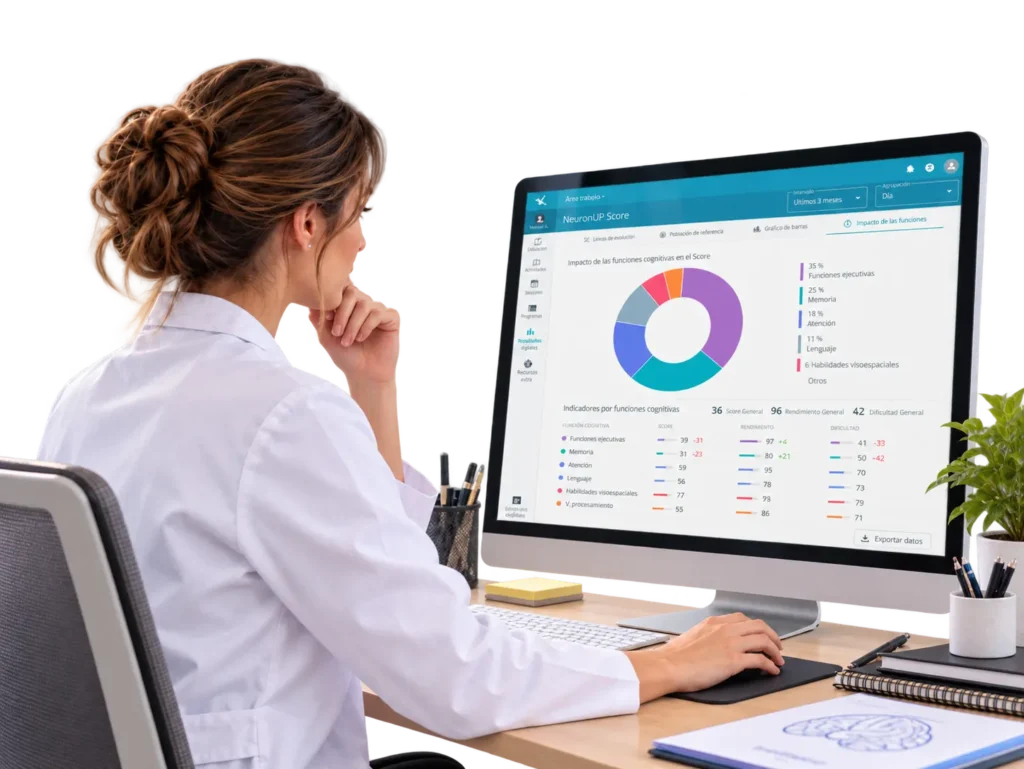
Automating part of the gathering, organization, and initial writing of the report means spending less time on administrative tasks.
You can use that time to interpret the results, analyze the patient’s progress, integrate clinical information, define new hypotheses, adjust goals, and plan the next interventions.
How do you create a report in NeuronUP?
1. Go to “Patient management”
Go to the “Patient management” section and select the profile of the patient you want to prepare the report for.
From their profile, you can access the recorded information and start generating the document.
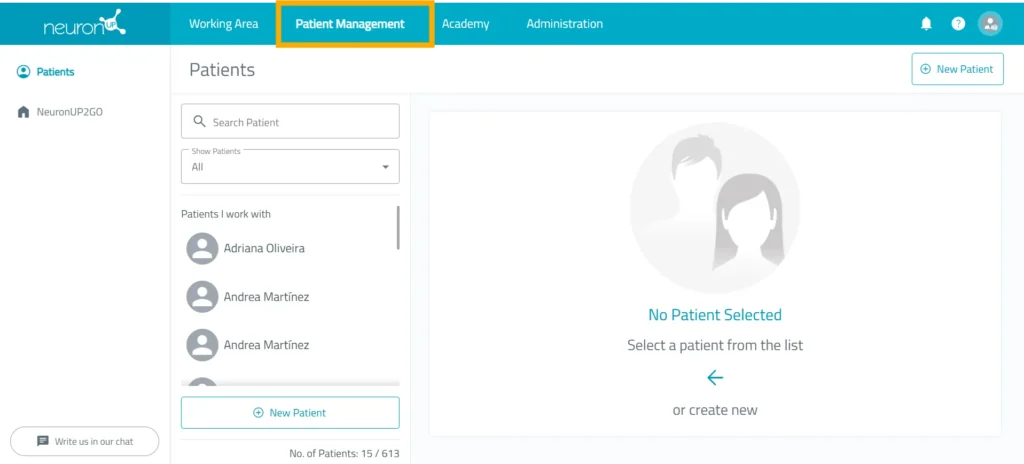
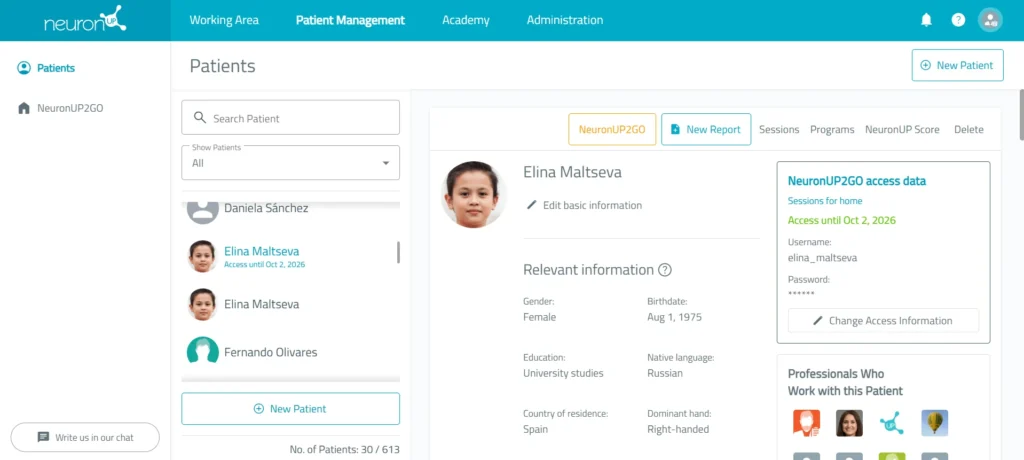
2. Select “New report”
Click the “New report” option to get started.
The platform will guide you through the different sections needed to set up the document.
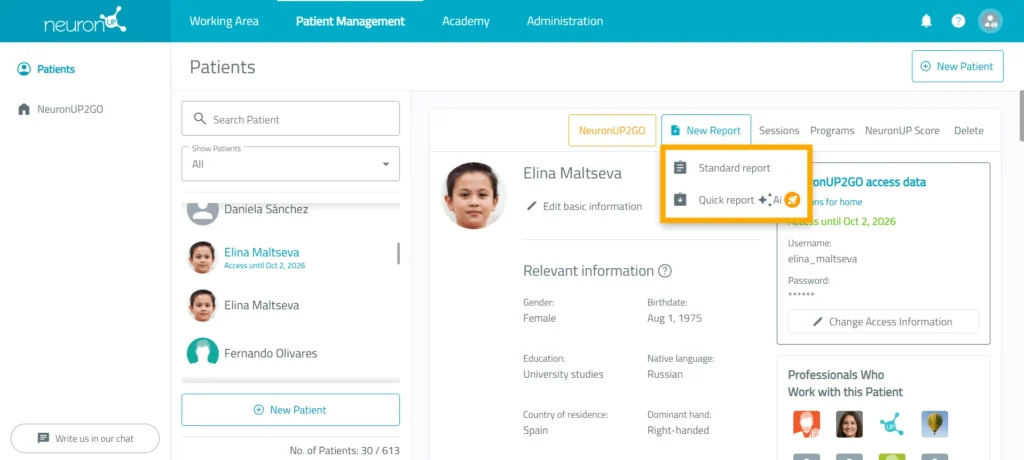
3. Choose the type of report
Select the type of report you want to generate from the available options, such as the standard report or the quick report (with AI).
The structure of the document will determine the information and customization options available in the next steps.
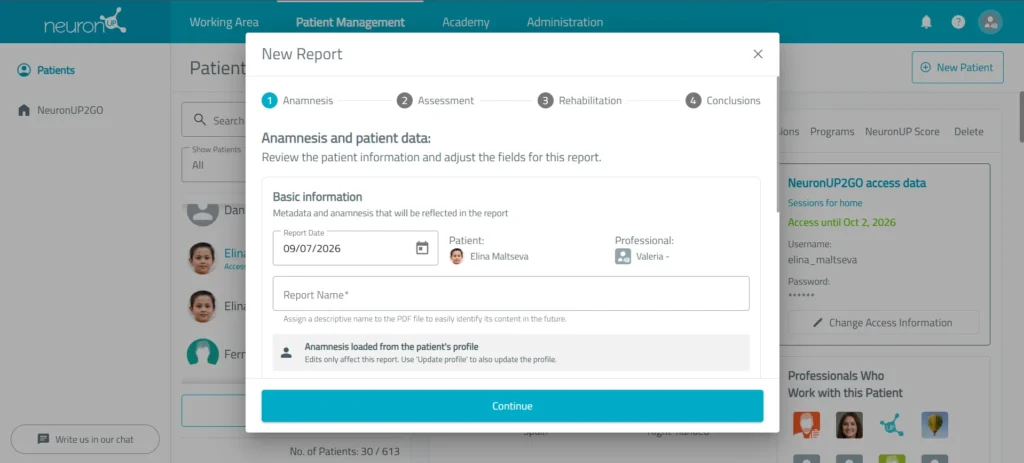
4. Enter and select the information you want to include
Enter the basic information and choose the data relevant to the purpose of the report.
You can select the results and charts that show the patient’s progress during the intervention.
This way, you can adapt the content to the patient, the recipient, and the reason for the report.
5. Customize the texts
Review and modify the different sections of the document.
You can add or adapt:
- Observations.
- Interpretations.
- Clinical conclusions.
- Professional comments.
- Recommended activities.
The goal is for the final document to reflect both the quantitative results and your professional assessment.
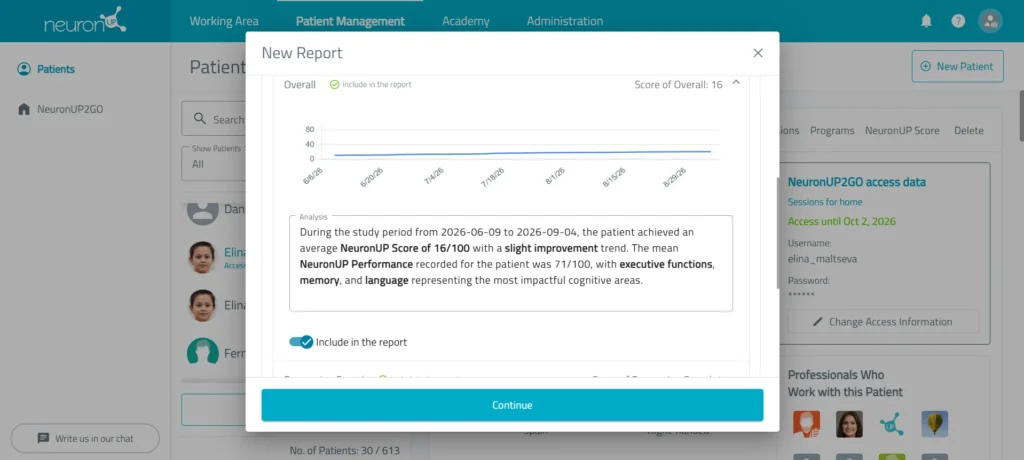
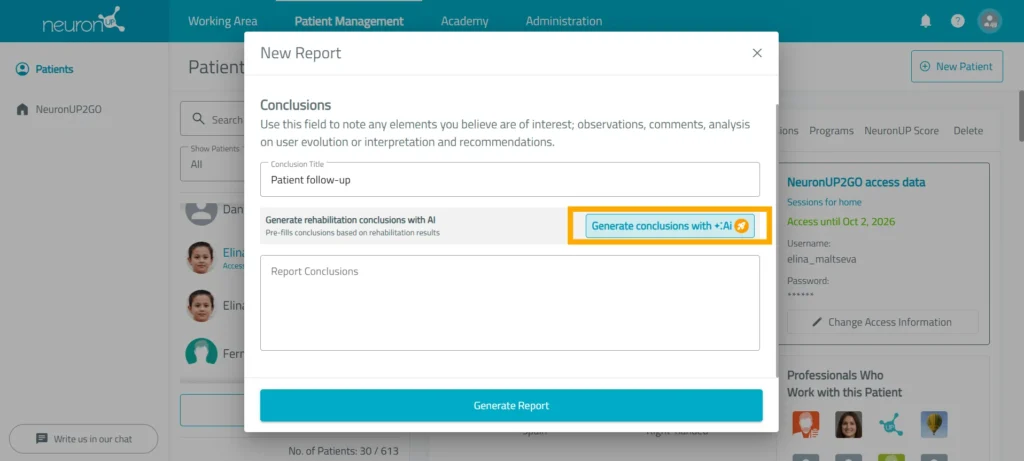
6. Use the AI-assisted interpretation
When this option is available, you can generate a suggested interpretation based on the selected information.
Always review the content before adding it to the report.
You can modify it, expand it, or delete any part of it to make sure the final interpretation fits the patient and your professional judgment.
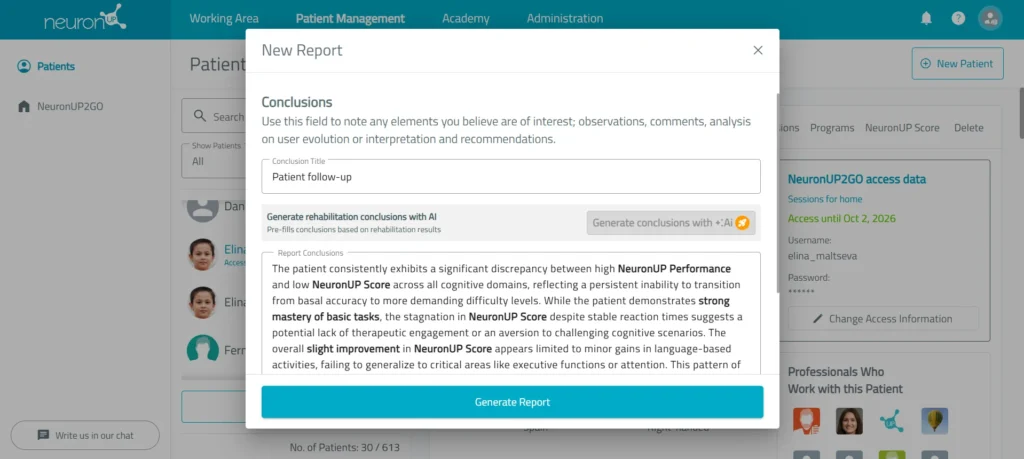
7. Review the report
Before finishing, check that the selected results, charts, texts, and conclusions are the right ones.
In particular, make sure the information is understandable for the person or professional who will receive the document.
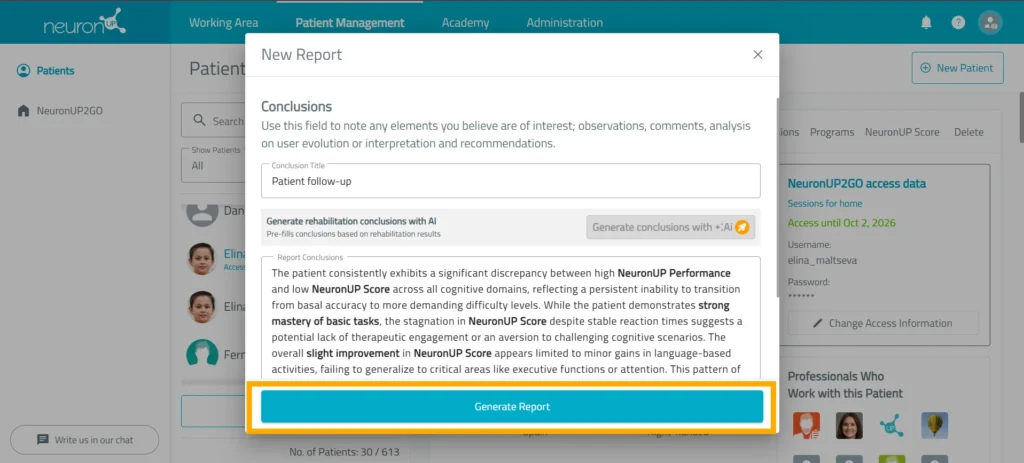
8. Download the report
When you have finished customizing it, generate and download the report to keep it or share it with the patient, their family, or other professionals.
From the NeuronUP reports section, you can:
Learn more about
NeuronUP


Frequently asked questions
What is the difference between a standard report and a quick report?
The standard report lets you set up the information you want to include step by step. You can add data, modify texts, select charts, and include additional information depending on the purpose of the report.
The quick report generates a proposal using artificial intelligence based on the patient’s results. It is designed for situations where you need a report quickly, for example, for periodic follow-up, to share an overview of progress with the family or the professional team, to prepare a progress review, or to have a summary before a meeting or appointment.
Can I choose which results appear in the report?
Yes. You can select the information you want to include depending on the purpose and recipient of the report.
You can also review and adapt the texts so that they reflect your interpretation and the particular characteristics of each patient.
Can I include assessment and intervention results?
Yes. You can combine information from both the assessment and the intervention to get a more complete view of the patient, as long as results are available in both sections.
Can I modify the content generated by artificial intelligence?
Yes. AI-generated content works as an initial proposal that you can review, modify, expand, or delete before adding it to the final report.
The professional always keeps control over the information and the interpretation that appear in the document.
Can I create and download an unlimited number of reports?
Yes. You can create and download as many reports as you need. However, the platform lets you keep up to 5 saved reports per patient at the same time.
If you have already reached that limit and want to create a new report, you will first need to delete one of the saved reports.