
NEURONUP ACTIVITIES
Save time and personalize your interventions with NeuronUP activities
Find activities tailored to each patient’s age, needs, and cognitive profile.
Customize their difficulty, use meaningful stimuli, and automatically save the results obtained.
What are NeuronUP activities?
NeuronUP activities are cognitive stimulation resources designed to work on different cognitive functions with children and adults.
The platform offers a catalog of hundreds of digital and printable activities. You can find games, worksheets, and generators, select the most suitable activity for each patient, and customize it according to their needs and therapeutic goals.
In addition, the difficulty of the activities can be adjusted to each patient’s performance and cognitive profile, making the intervention more individualized.
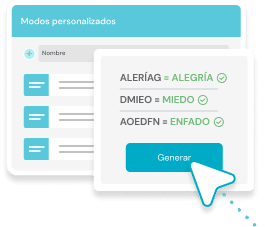
Generators
Prevent the patient from memorizing the exercise by creating endless versions of the same activity, which can be done digitally or on paper. Highly customizable to make it easy to include meaningful stimuli.
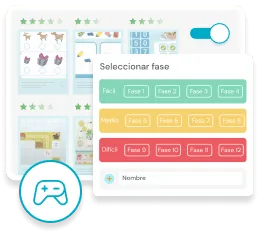
Games
Organized into different difficulty levels through which the patient will automatically move up or down depending on their correct answers or mistakes. They can also be customized.
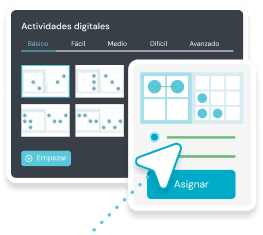
Worksheets
Organized into different difficulty levels. In the updated version, the patient will automatically move up and down a level depending on their correct answers or mistakes.
Discover the advantages of customizing activities in NeuronUP
In this video, you will discover the advantages of using NeuronUP activities in your interventions.
What can you achieve with NeuronUP activities?
Quickly find the activity you need:
Filter the extensive catalog by age, activity type, recommendations, classic options, or the most used ones to find, in much less time, all the resources best suited to each of your clinical or educational interventions.
Work on different cognitive functions:
Select a variety of activities, printable or digital, divided by intervention areas, cognitive functions, and subfunctions such as attention, memory, language, or orientation. It also includes an occupational areas section for activities of daily living.
Adapt the difficulty to each patient:
The difficulty can be adjusted directly to each person’s performance and cognitive profile, helping them work at the right level for their abilities and progress, so they do not lose motivation or become frustrated by excessive difficulty.
Customize the activities:
Modify the different activity parameters to adapt them to specific intervention goals. Thanks to the generators, you can easily include familiar or meaningful stimuli to significantly increase the patient’s direct engagement.
Boost motivation:
Dynamically combine different types of games, worksheets, and generators with different designs and formats to adapt the whole intervention to the particular preferences, tastes, and needs of each patient.
Reuse your customized activities:
Save your own customized settings so you can easily use them again with the same patient in future sessions or with other profiles with similar characteristics, drastically reducing preparation time.
Record results automatically:
The results of digital activities are saved completely automatically to each patient’s profile. This eliminates the need for manual record-keeping and ensures convenient, fast, and accurate follow-up.
Plan tailored interventions
in less time
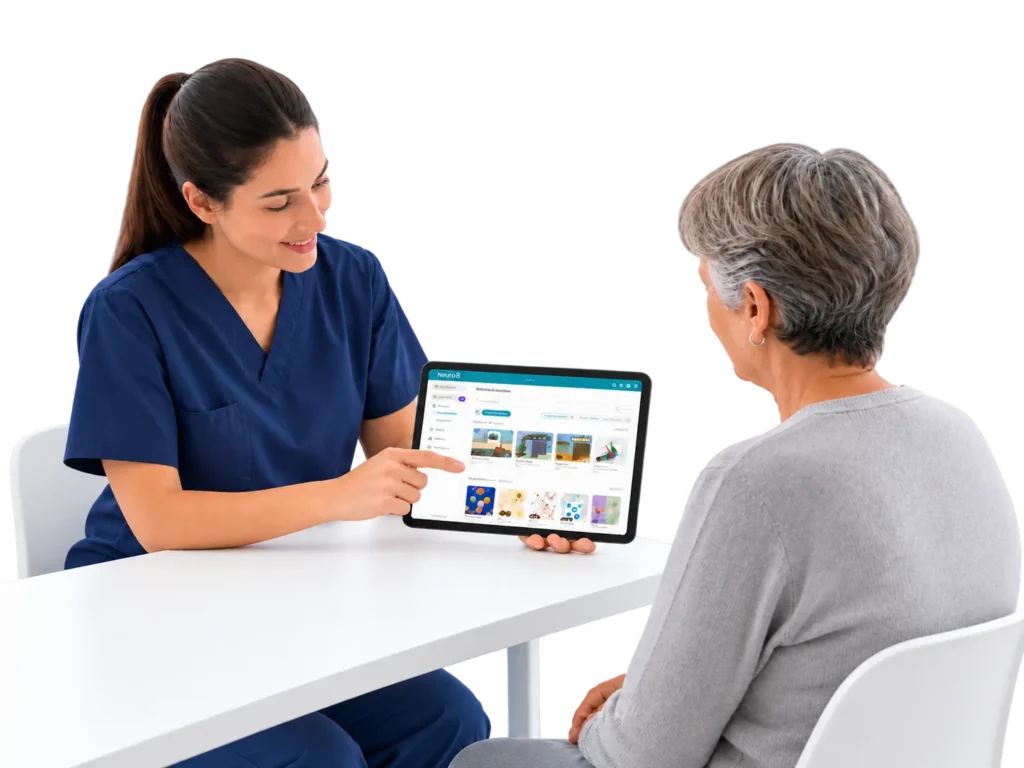
With NeuronUP activities, you can find the resources you need, customize them, and review the results from a single platform. This way, you spend less time searching for materials, configuring exercises, and recording results, and you can focus on what matters most: your patients.
How do you find an activity in NeuronUP?
1. Go to “Activities”
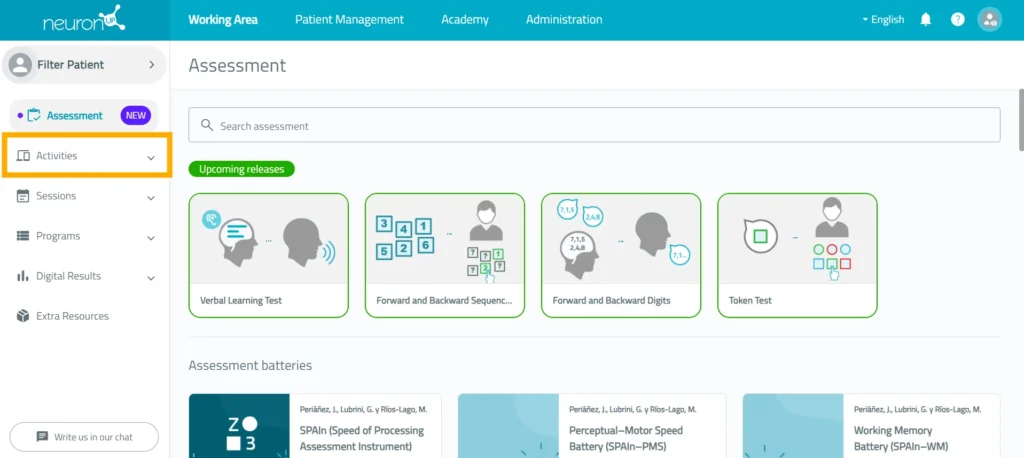
Log in to NeuronUP and select the “Activities” tab in the main menu. Then go to “Digital activities”. From this section, you can browse the catalog of available activities.
2. Select the filters
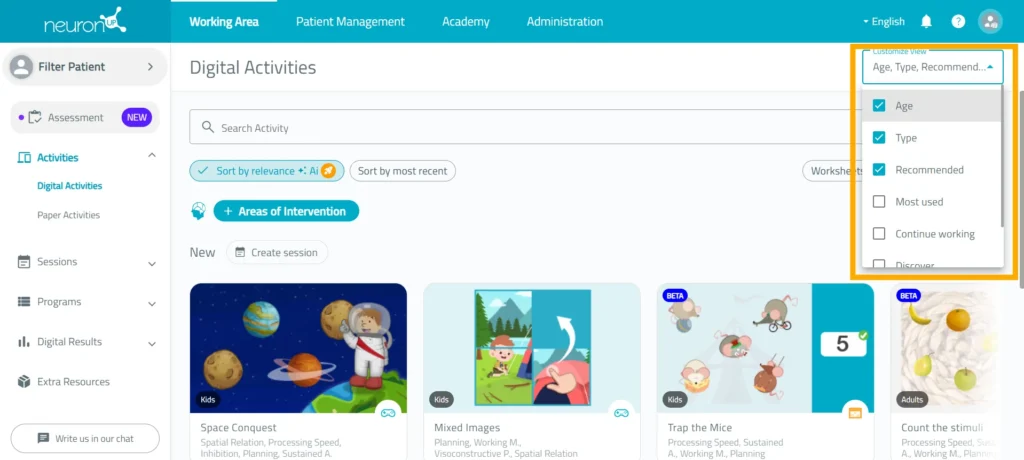
Use the filters to narrow down your search and find activities suited to your intervention. The results will update according to the selected filters.
3. Choose the intervention area
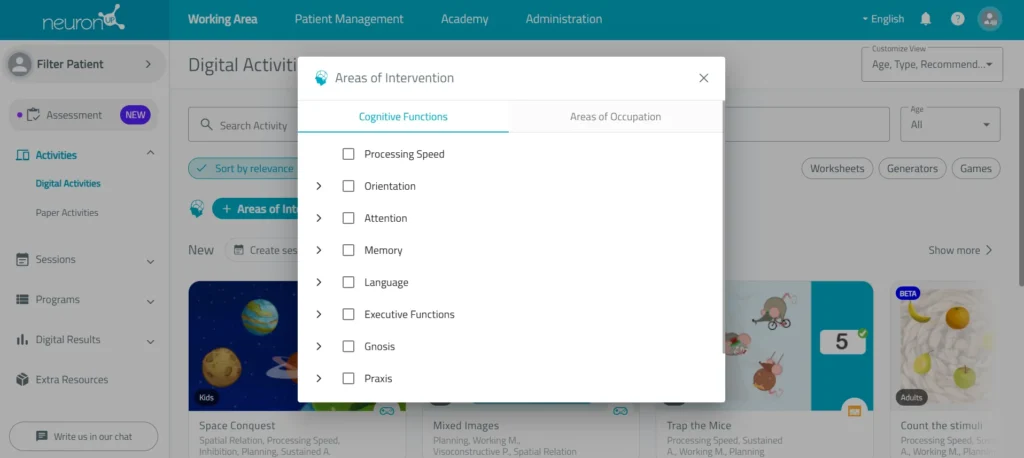
Click the “Intervention areas” button and select the cognitive function you want to work on. You can expand each area to see the different subfunctions available. Check the box for the function or subfunction you are interested in to see the related activities.
4. Select an activity
Review the results and click on the activity you want to use. Before starting, you can check its description, the goals it works on, and the available settings.
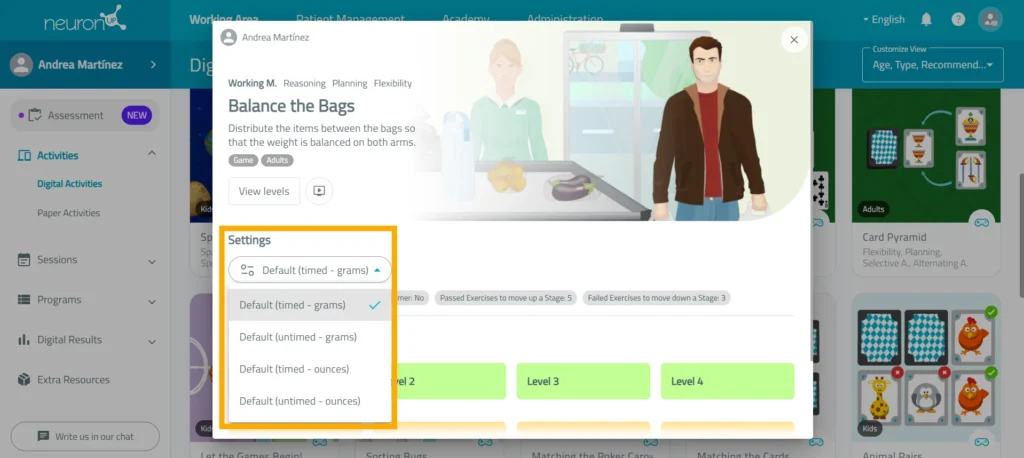
5. Customize the settings
Adapt the activity to the patient’s needs and cognitive profile. Configure the activity using the options available for each activity. You can also save these settings to reuse them in future interventions.
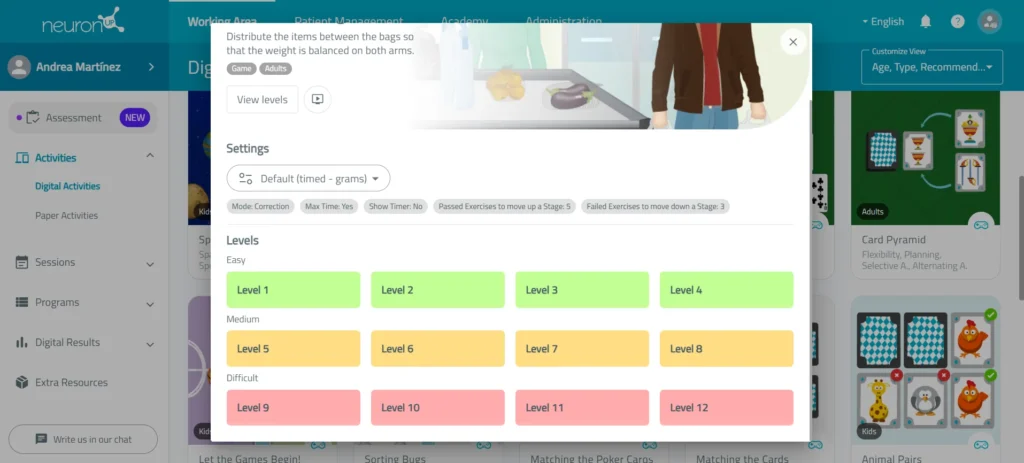
6. Select the phase
Choose the difficulty level that best suits your patient’s needs. As they do the activity, the level will adjust automatically, increasing or decreasing according to their performance.
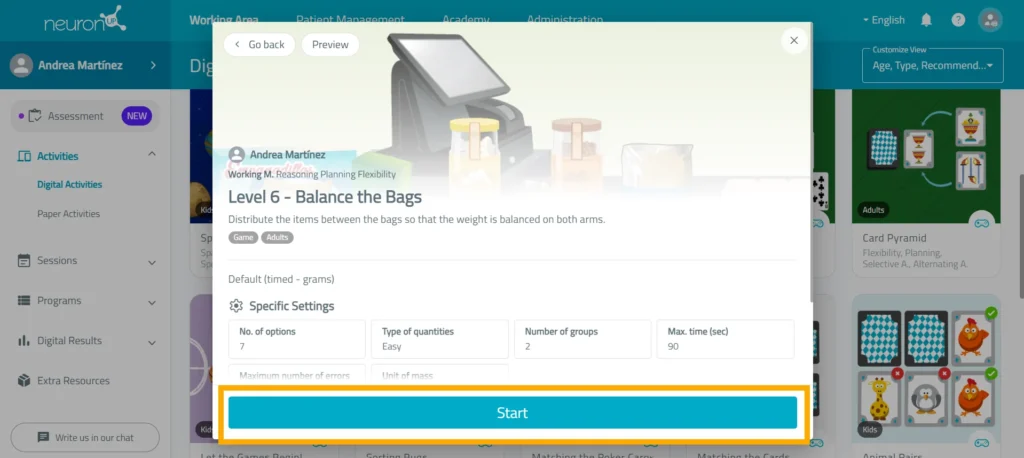
7. Start the activity
Start the activity so the patient can begin working. The results of digital activities will be recorded automatically when they finish.
Learn more about
NeuronUP


Frequently asked questions
Can I use any activity with any patient?
NeuronUP differentiates between activities for children and for adults, so we recommend using the resources designed specifically for each population.
The content, parameters, and designs have been developed taking into account the characteristics and needs of each age group. That is why it is advisable to select the corresponding activities and adapt them to each patient’s profile.
Which activities can I use if I work with adolescents?
Adolescence covers a wide period, and needs can vary considerably from one person to another.
That is why we recommend selecting the activities that best suit each adolescent’s age, interests, abilities, needs, and intervention goals.
Can all activities be customized?
Yes. The different types of NeuronUP activities offer different customization options.
You can select the difficulty level and, depending on the activity, configure different parameters. Generators allow more specific customization, with options such as the number of stimuli, the complexity of the elements, or the number of target stimuli, among others.
Are activity results saved automatically?
Yes. The results of digital activities are automatically recorded on the platform and linked to the patient’s profile to make follow-up easier.
How can I filter my activity search?
You can use different filters to find the activities you need more easily, such as:
- Age.
- Activity type: games, worksheets, or generators.
- Most used activities.
- Recommended activities.
- Activities previously used with that patient.
- Intervention areas, including cognitive functions and occupational areas.
From the “Customize view” drop-down menu, you can select the filters you want to use and get a selection of activities better suited to your needs.