In today’s article we present the latest NeuronUP updates, including new features and our assessment product.
NeuronUP Assessment
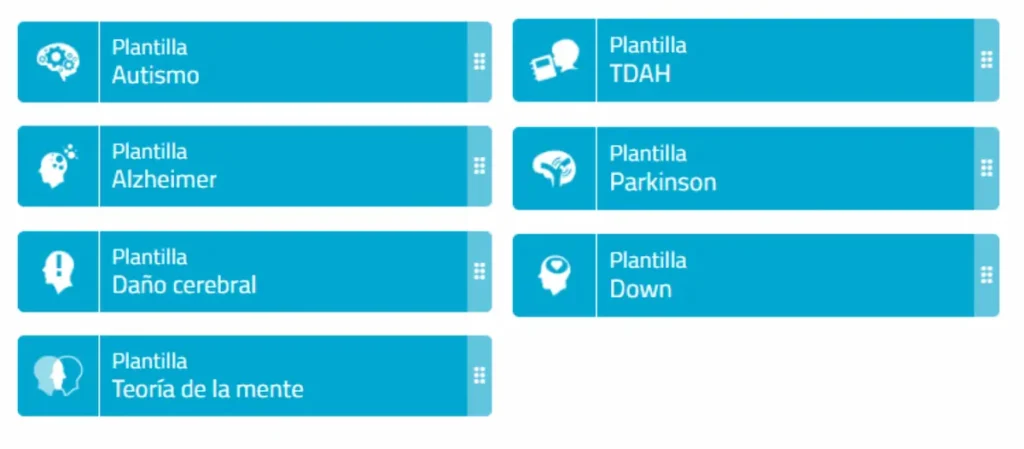
NeuronUP’s new assessment product, developed with neuropsychology experts Marcos Ríos-Lago, Genny Lubrini and José Periáñez, allows you to digitize your users’ assessment processes.
It contains tests and batteries with strong scientific support, focused on different cognitive areas, offering a set of metrics that allow you to optimize decision-making.
NeuronUP Assessment is a product in continuous evolution in which we keep adding more batteries and tests to evaluate new cognitive functions.
Template sessions
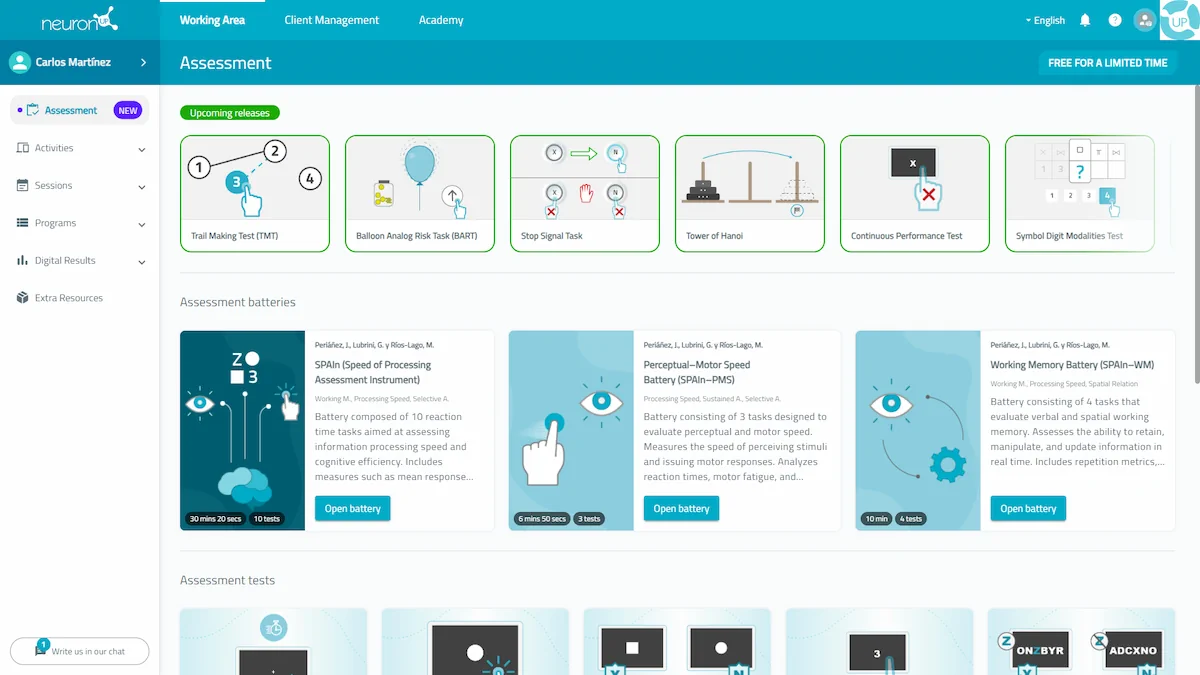
You can find template sessions within the digital sessions. They can serve as a guide to carry out your interventions and create sessions focused on different pathologies.
Which template sessions are currently available?
- Theory of Mind template session: Contains 3 activities, lasts 3 minutes and its main area is social cognition.
- Alzheimer template session: Contains 6 activities, lasts 34 minutes and its main areas are Time Orientation, episodic memory and visual agnosias.
- Parkinson template session: Contains 6 activities, lasts 35 minutes and its main areas are Time Orientation, working memory and spatial visualization.
- ADHD template session: Contains 6 activities, lasts 30 minutes and its main areas are flexibility, reasoning and spatial relations.
- Down syndrome template session: Contains 6 activities, lasts 30 minutes and its main areas are selective attention, social cognition and visual agnosias.
- Autism template session: Contains 5 activities, lasts 25 minutes and its main areas are social cognition, processing speed and inhibition.
- Brain injury template session: Contains 6 activities, lasts 30 minutes and its main areas are reasoning, episodic memory and time estimation.
From the NeuronUP team, we recommend that you personalize and adjust them to adapt to your users’ needs.
Standard and quick progress reports
In NeuronUP Rehabilitation you can create progress reports from the user’s profile.
Currently, you can find two types of report:
Standard report
In which you have to fill in more steps to obtain the report and, for a limited time, you can add conclusions to this report for free.
Quick report
Automatic report generated in seconds with all the fields of the standard report plus conclusions. This type of report can be created for free for a limited time.
What will you find in NeuronUP reports?
- User’s medical history.
- Relevant information such as sex, date of birth or education.
- User diagnosis.
- Data worked on using NeuronUP
- Scores by cognitive functions.
- Results of the assessment process, in case they have completed any battery or test.
- Charts by cognitive areas.
- Therapeutic guidelines
How to create standard reports?
- Click on the “User management” module and select the user for whom you want to create the progress report.
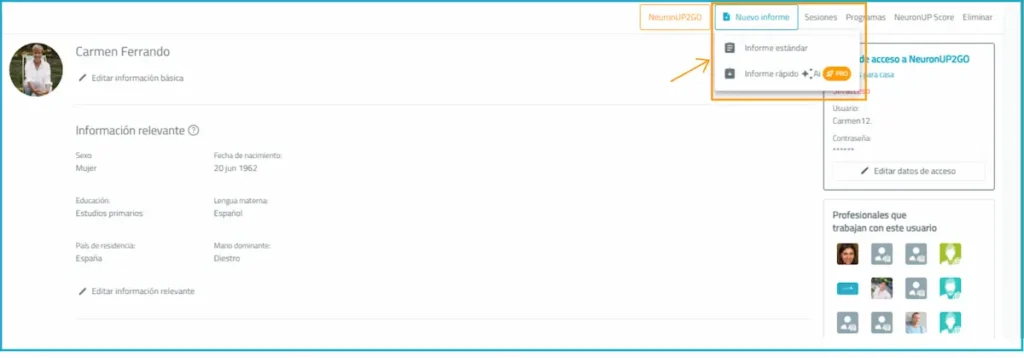
- At the top of their profile you will see a “New report” button; click it and select the Standard report option.
- Fill in the user’s basic information and additional information. Remember that, if you save the information included in the anamnesis and in the observations, it will automatically update in the selected user’s profile.
- Include the report content. Select the information you consider relevant to include in your report and the time interval you want it to focus on.
- Choose the cognitive functions you want to cover in the report; you can also add an anamnesis for each of them.
- Generate therapeutic guidelines with our new function “Generate conclusions with AI“. Thanks to this tool, with a single click NeuronUP will generate conclusions about the obtained data.
* At NeuronUP we recommend reviewing the conclusions generated by AI to ensure rigor, accuracy and professional judgment. Your professional assessment remains key in the process. - Select “Generate report” and in a few seconds a PDF with all the information will download to your computer.
How to create quick reports?
- Click on the “User management” module and select the user for whom you want to create the progress report.
- At the top of their profile you will see a “New report” button; click it and select the Quick report option.
- Include the user’s medical history and, as with standard reports, if you click the save button, the information will be automatically updated in the user’s profile.
- Click the “Generate report” button and in a few seconds a report will download to your computer.
This functionality is free for a limited time.
Check out this video to learn how to create quick reports in NeuronUP.

Subscribe
to our
Newsletter
New usability and accessibility improvements
In NeuronUP’s updated activities you can find new accessibility improvements to better adapt to your users.
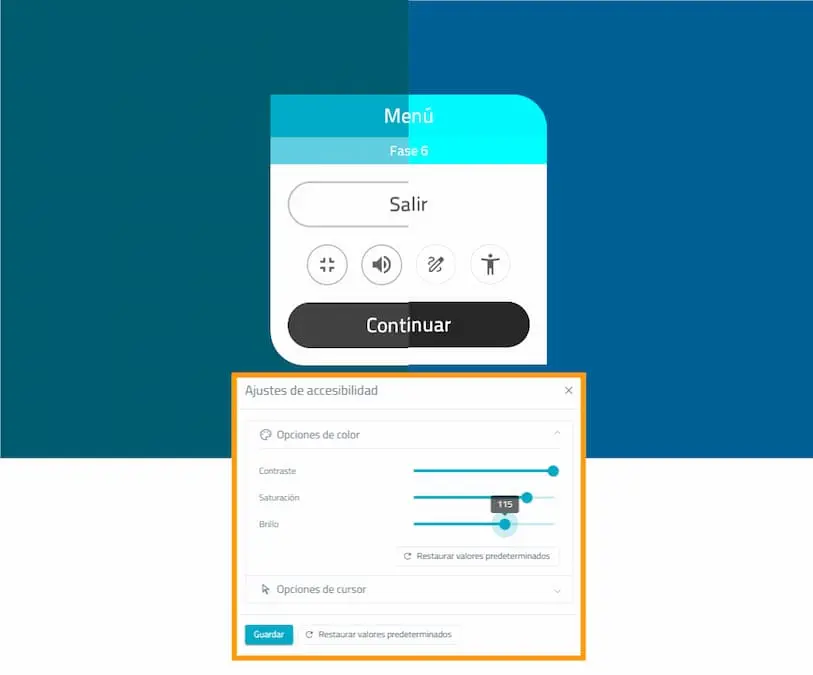
You can access all these settings from the “Menu” button within the activity.
To save these settings it is very important that you click save; this way you won’t lose them. At any time you can reset the activities’ default configuration from the same “Menu”.
Color settings
In general, contrast, saturation and brightness settings can be applied to activities to improve visibility and personalize the experience for people with different visual impairments.
In activities that work with colors, these changes cannot be applied, because the original activity is needed to perform them.
Cursor settings
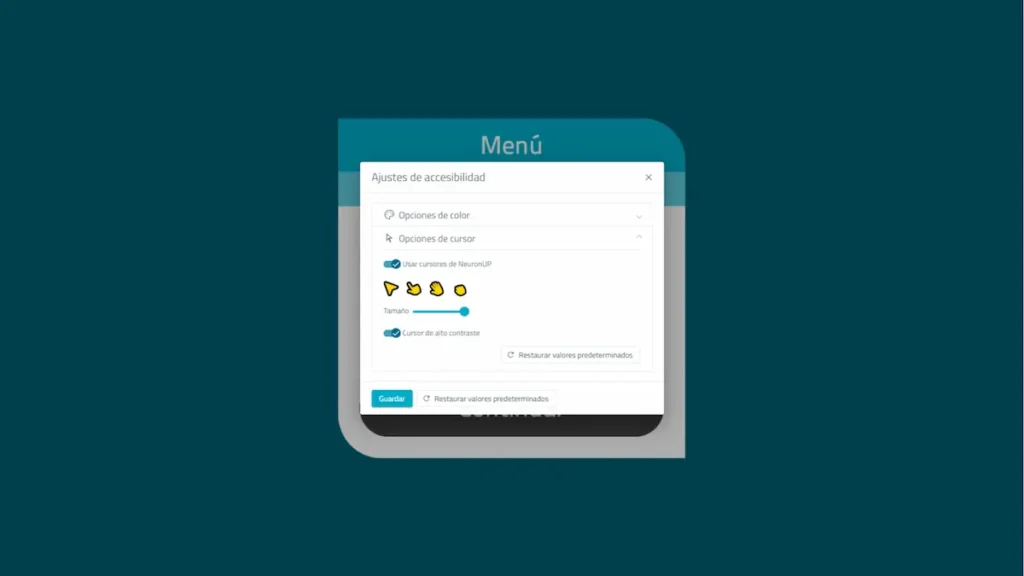
In the same tab where you can change color settings, you will find cursor settings, allowing you to select different sizes and shapes.
You can pair these size settings with contrast changes of the cursor itself for better visualization.
Screen theme settings
We have added a high contrast screen theme for better visibility and readability of the screen and to reduce eye strain.
New updated activities
We are updating our activities to offer you and your users a better experience.
You can now find our games in their updated version, with new designs, better leveling and greater adaptation to users.
We have begun updating our activity cards, but what will you find new in NeuronUP’s cards?
- Right Now cards will work like the games, meaning your users will level up and down automatically.
- As a rule, users will have to pass 5 exercises to advance a phase and fail 3 exercises to drop a phase.
- You will have the Correction mode and the Free mode from the dropdown on the card’s introduction screen.
When to choose Correction mode or Free mode?
The Correction Mode is suitable for profiles that need structured training, with immediate feedback and quantitative performance control. For example, it can be ideal for children with ADHD, who require instant error detection to improve monitoring and accuracy, as well as for people with mild cognitive impairment who may benefit from a clear structure that helps them maintain attentional focus and reinforce consistency in performance.
On the other hand, the Free Mode is more appropriate for profiles that need a flexible environment without pressure over errors, prioritizing exploration, motivation and qualitative observation. For example, this mode can be useful for children with brain injury, where fatigue and attentional fluctuations require a less demanding approach, and for older adults with dementia, to avoid anxiety or blocking and to encourage participation, well-being and a more ecological approach focused on experience.
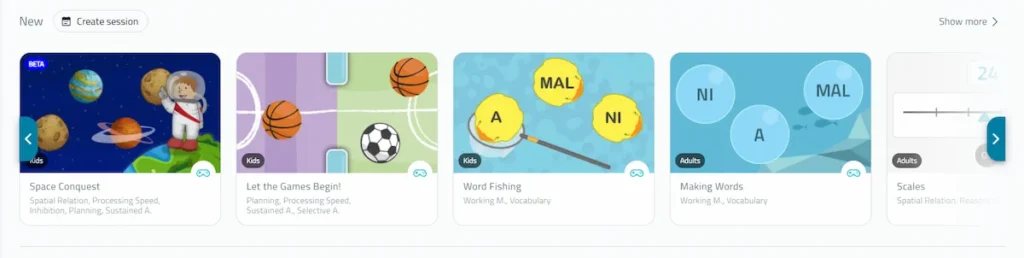
Some of the cards you will find updated are:
- Additions (Adults).
- The Missing Number (Children).
- Pair up the figures (Adults)
- What Number Do You Hear? (Children)
- Counting and Selecting (Adults).
Similar sessions
At NeuronUP, in addition to finding content to carry out your interventions, you have the possibility to create sessions to organize yourself in advance.
Sessions are a set of activities that you can group so that a user can perform them for an established period of time.
Right Now, with this new feature, you can create similar sessions with a single click thanks to AI.
What does the AI base its generation of these new similar sessions on?
- Cognitive functions involved in the activities of the reference session.
- Most relevant areas according to the diagnosis of the user who will perform the similar session.
- Your center’s data.
- The user’s recent activity history. It will select those activities that the user hasn’t repeated many times and has performed recently.
Where can I create similar sessions from?
You can create similar sessions from:
- Within digital activities, in the section Activities that might interest you, you will find a button to create sessions from these activities.
- From the Digital sessions tab.
How to generate similar sessions?
From the Activities that might interest you tab:
- In the “Workspace” module, scroll to the “Activities that might interest you” section.
- Next to it you will find the “Create session from these activities” button; click it and enter the session’s basic and relevant information.
- In a few seconds the session will be created.
- Before clicking the finish button, review the activities included in the session; you can edit them, change the execution order and add or remove activities.
- Click the finish button and you will have the session generated in the sessions tab ready to assign it to your user.
From the Digital sessions tab:
To generate similar digital sessions you need to have an existing session already created or use the template sessions available in NeuronUP.
- Select the session from which you want to generate a similar one, or one of the template sessions available on the platform.
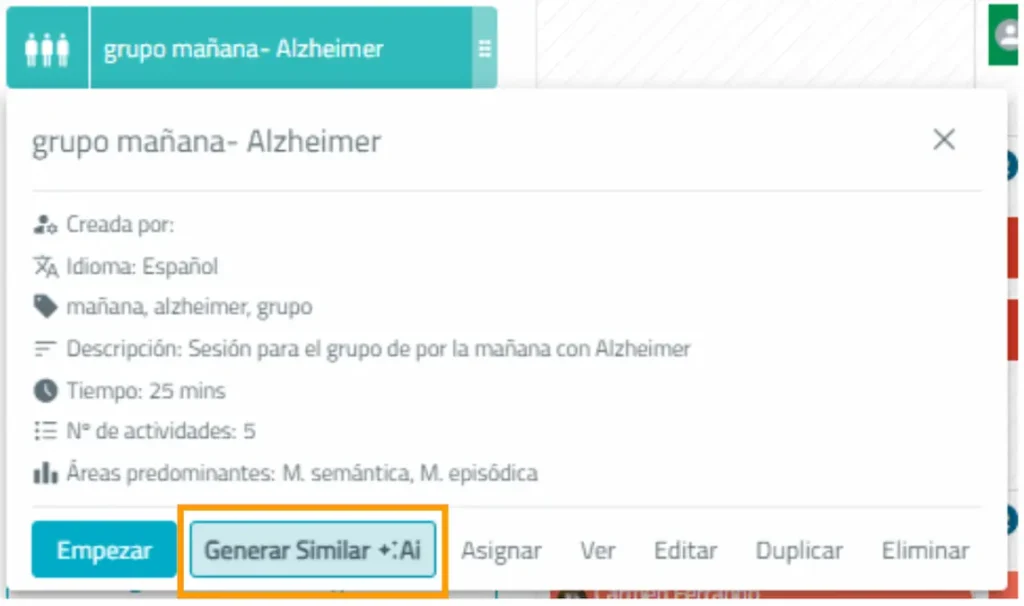
- Click on it and, next to the “Start” button, you will see “Generate similar“; click it.
- Enter the basic information and relevant information for the similar session and click the “Generate” button.
- In a few seconds your similar session will be generated.
- Review the generated session, adapt the included activities to your user and click “Finish“
- Assign the session to the user or group of users with whom you want to work the session.
Streamline your interventions with NeuronUP’s new updates, improve your processes and boost your results with our latest features.
If you liked this article from NeuronUP News, you will probably be interested in these articles:





“This article has been translated. Link to the original article in Spanish:”
Novedades de NeuronUP

 Interpretability of Performance and Score in NeuronUP



Leave a Reply